
With the release of Windows 10 almost a month behind us, most people have already claimed the free upgrade. If you haven’t, then you definitely should! Not because it is the greatest operating system ever… but because it is free and will keep your computer from becoming an out of date boat anchor. That being said, when a large company like Microsoft gives you an upgrade for free, they usually are making money somehow. It is no strange thing for companies to use your information to sell advertisement and targeted advertisements are all the rage right now. Meaning that companies like Microsoft want to tell companies like Target that you are really into searching for furniture right now so Target will display an ad about a desk they have to you. Furthermore, Windows 10 can collect your GPS location, credit card or social security info, phone info, address, or really anything you do. It says so right in the privacy statement that you agreed to in the initial download.
Thankfully, I am bringing you a handy easy how-to guide to turning most of these features off to help you. The reason being that this information that is being gathered can also be intercepted by the wrong people and used against you. In an ideal world, these targeted ads may not be so bad. Dare I say… helpful! However, a few bad apples like to spoil the bunch. I digress.
Features I Recommend to Turn Off in Windows 10
After all of you accounts are logged in and you think everything is configured the way you want, your first step is to click here. This is the site you should use to access Microsoft’s personalised ad preferences. Turn off each setting. Easy right!
I personally don’t use Internet Explorer. I mean “Microsoft Edge.” However, some may prefer it. If so, go into Edge and click on the ellipsis button (the one that looks like three dots). Click settings, then advanced settings, then view advanced settings. Under “Privacy and Services,”Have Cortana Assist Me in Microsoft Edge” and “Use Page Prediction to Speed Up Browsing, Improve Reading, and Make My Overall Experience Better” should be turned off. However, the latter really can help in some ways and may be worth the info it gathers.
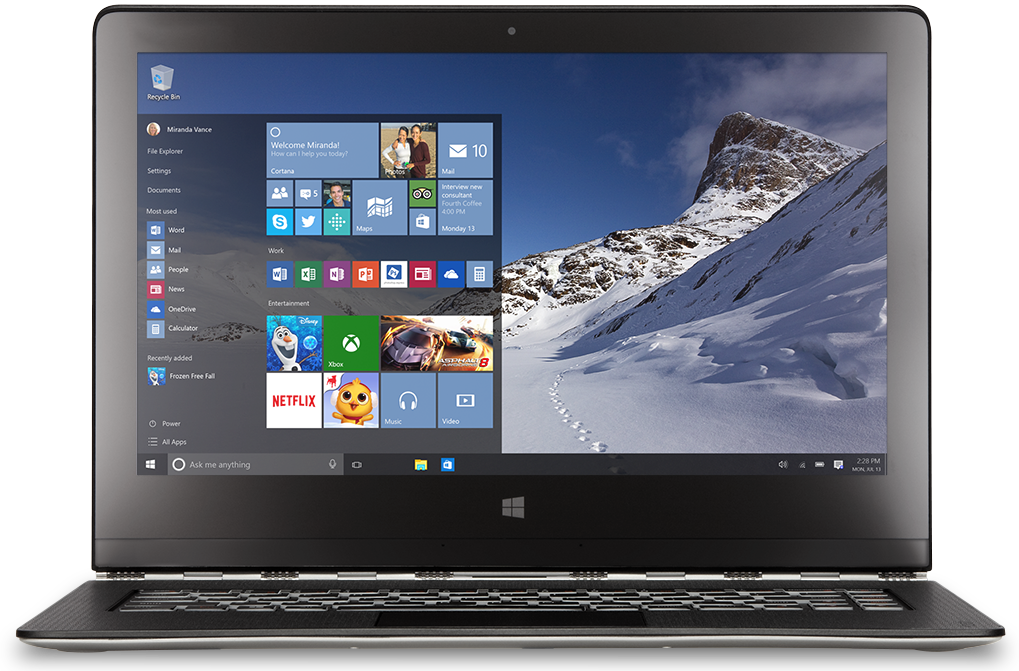
Next, hit start, settings, and privacy. Click General and turn off the very first setting labeled ” Let apps use my advertising ID for experiences across apps.” You will want to click around in the privacy tab and customize your settings for things like your camera. One of the most important is to click on the Feedback & Diagnostics section and change the “Feedback Frequency” to never and the “Diagnostic and Usage data” to basic. Also, click on “Speech, Inking, and Typing” and click stop getting to know me so that Windows will stop collecting your personal info. **NOTE: This will also turn off Cortana.**
Cortana. Oh, Cortana. Cortana is one of the most gripping or gimmicky things that Windows 10 has to offer. It all just depends on how useful you think it is to talk to your computer. However, Cortana learns about you and what you do. It even gathers handwriting data when you touch the screen as we shut off above. By clicking here, you can login and erase the “Interests” and the “Speech, Inking, and Typing” information that may have been collecting before the last step. This will help keep that information to yourself.
Microsoft REALLY wants you to sign up for a Microsoft account. Most experts agree that you should not make this account if you are worried about privacy. If you create an account, then your personal information will leave your computer and will no longer just be stored locally with you. If you already did this and regret it, just click the start menu, go to accounts, and then your account. From here, you can completely manage your account.
Next click on Settings again. Click Network and Internet. Scroll down to Manage Wi-Fi Settings. Turn off “Connect to suggested open hotspots” and “Connect to networks shared by my contacts.” These features will automatically connect you to hotspots that may not be secure and leave you open to hacking.
Now that that’s over, a lot of these features are things that you have to weigh the importance of for yourself. Some of these settings are more important to turn off than others. Some people may really want the use of Cortana to complete the windows 10 experience. That means that they will need to leave certain features on.
So how much of this will you do to your computer? Does anyone else have some Windows 10 tips?
 downsizetheweb.net
One thought on “Windows 10 – A guide to what you should be doing…”